Guidance for Developing Accessible PowerPoint Content
Microsoft PowerPoint presentations are commonly used to share information in meetings, trainings, and public-facing materials. When created correctly, PowerPoint files can be accessible to users who rely on assistive technology such as screen readers.
Accessible PowerPoint documents improve usability for all users and help ensure that materials published on the MCCB website meet accessibility standards.
Before You Create
Before creating or submitting a PowerPoint presentation, consider whether a slide deck is the most appropriate format.
- Can this content be presented as a webpage instead?
- Is PowerPoint necessary for visual presentation or training purposes?
- Will the content be shared in a way that allows all users to access the information?
- Is this presentation current and necessary for website publication?
The MCCB website is not a document repository. Only necessary, accessible documents should be submitted for publication.
Creating Accessible PowerPoint Documents
Accessibility in PowerPoint depends on how slides are structured, organized, and labeled.
Step-by-Step Guide
Structure Your Document
- Slide Layouts
Built-in slide layouts help maintain a consistent structure and improve accessibility for users navigating presentations with assistive technology. Using PowerPoint’s predefined layouts helps preserve proper reading order, title structure, and content organization.
Using Slide Layouts
- Open the PowerPoint presentation.
- Select the slide you want to review.
- Go to the Home tab.
Select Layout.
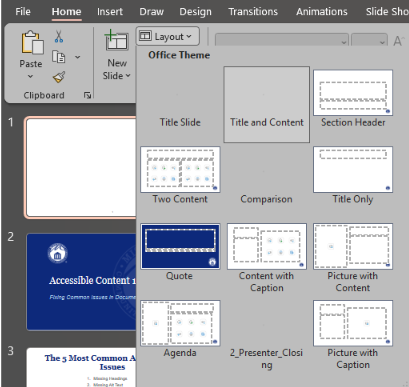
- Choose a layout that best fits the slide content.
- Move content into the built-in placeholders when possible.
- Repeat for additional slides as needed.
Best Practices
- Use built-in layouts instead of manually placing text boxes.
- Ensure each slide includes a title placeholder.
- Keep layouts consistent throughout the presentation.
- Avoid overcrowding slides with too many objects or placeholders
- Reading Order
Reading order determines the sequence in which screen readers announce slide content. A correct reading order ensures users hear information in a logical and understandable sequence.
Checking Reading Order
- Open the PowerPoint presentation.
- Select the slide you want to review.
- Go to the Review tab.
- Select Check Accessibility.
Open the Reading Order Pane if available.
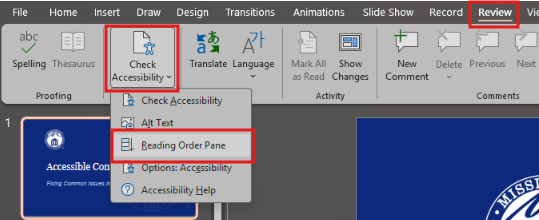
- Review the listed order of objects on the slide.
- Rearrange items as needed so content is read logically:
- Slide title first
- Main content second
- Decorative items last
- Repeat for each slide.
Best Practices
- Keep content organized and uncluttered.
- Ensure titles are read before slide content.
- Avoid overlapping objects when possible.
- Recheck reading order after moving or adding content.
- Alternative Text
Alternative text, or alt text, provides descriptions for images, charts, icons, and other visuals so screen reader users can understand their purpose or meaning.
Adding Alternative Text
- Select the image, chart, or visual.
- Right-click the object.
Select View Alt Text or Edit Alt Text.
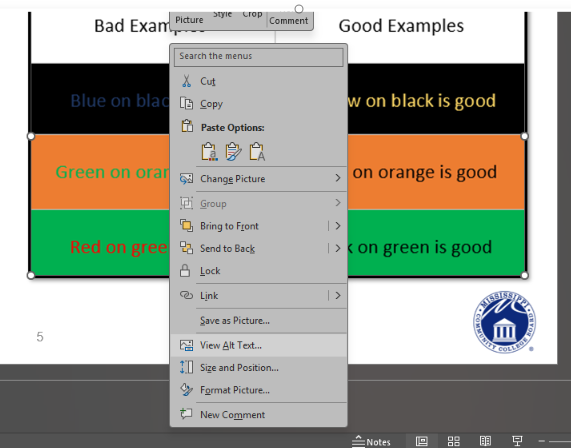
- Enter a short description explaining the meaning or purpose of the visual.
- Mark decorative visuals as decorative if appropriate.
- Close the Alt Text pane.
Best Practices
- Describe the purpose or takeaway of the visual.
- Keep alt text concise and meaningful.
- Avoid phrases such as “image of” or “picture of.”
- Summarize important trends for charts or graphs.
- Color Contrast
Strong color contrast helps ensure text and visual elements remain readable for users with low vision or color blindness.
Checking Color Contrast
- Review slides for low-contrast color combinations.
- Ensure text stands out clearly against the background.
- Replace difficult-to-read color combinations with higher-contrast options.
- Review charts, tables, and diagrams for readability.
- Add labels or symbols if color is used to communicate meaning.
Best Practices
- Use dark text on light backgrounds or light text on dark backgrounds.
- Avoid relying on color alone to communicate information.
- Use readable font sizes and styles.
- Test slides on different displays when possible.
- Links
Descriptive links help users understand where a hyperlink will direct them without needing additional context.
Creating Descriptive Links
- Select the text you want to hyperlink.
- Right-click the selected text.
- Select Link.
- Enter or paste the web address.
- Select OK.
- Confirm the visible link text clearly describes the destination.
Best Practices
- Avoid vague text such as Click Here or Read More.
- Avoid displaying long raw URLs as visible text.
- Use descriptive phrases such as View the Accessibility Guide.
- Include file types when linking to downloadable documents.
- Embedded Audio and Video
Audio and video content should be accessible to users who are deaf, hard of hearing, blind, or low vision.
Checking Embedded Media
- Review slides containing audio or video content.
- Ensure videos include captions when possible.
- Confirm audio is clear and understandable.
- Add transcripts or supporting text when appropriate.
- Verify media controls function correctly during presentation mode.
Best Practices
- Use captions for videos whenever possible.
- Provide transcripts for audio-only content.
- Avoid autoplay media when possible.
- Ensure important information is not communicated through audio alone.
- Animations and Transitions
Excessive animations or transitions can distract users and make presentations more difficult to follow.
Reviewing Animations and Transitions
- Open the PowerPoint presentation.
- Select a slide with animations or transitions.
- Go to the Animations tab.
- Review all applied animations.
- Remove unnecessary or distracting effects.
- Go to the Transitions tab.
- Use simple transitions consistently throughout the presentation.
Best Practices
- Limit animations to essential content only.
- Avoid flashing or rapidly moving content.
- Use simple, consistent transitions.
- Ensure animations do not interfere with readability or comprehension.
Run the Accessibility Checker
- Select the Review tab.
- Select Check Accessibility.
- Review errors, warnings, and tips.
- Fix all identified issues before submission.
Tools and Resources
Support Pages
- Microsoft Support: Make your PowerPoint presentations accessible
- Microsoft Support: Accessibility Tools for PowerPoint
- WebAIM: PowerPoint Accessibility
- Section508.gov: Presentation Accessibility Guidance
- National Center on Disability and Access to Education: PowerPoint Cheatsheet